
You sit down to work and pick up your phone to check a task. A message catches your attention. You reply, switch back, and have to remember what you meant to start.
Dottie Stickers give a saved task a physical entry point. Place one where you work, connect it to a task in DottieNote, and bring your iPhone close to it when you are ready. The idea is to shorten the trip between deciding to do something and getting to it.
The sticker cannot choose the work for you, though. It helps most when the task, the location, and the next action are already clear. This guide follows one example—preparing a presentation—from setup through an interrupted session and its eventual finish. You can adapt it to reading, studying, or another task that benefits from a little uninterrupted attention.
Decide what this half hour is for
“Prepare the presentation” belongs in a plan, but it leaves several decisions open. Will you research, write an outline, or adjust the layout? If you wait until the timer is running to choose, the first few minutes can disappear into deciding.
Try a smaller task: “Outline the opening three slides.” You are not promising to finish the entire presentation or make those slides ready to show. You are choosing an outcome you can recognize at the end of this session.
Other examples might be:
- Instead of “Study English,” choose “Read this short article and mark the sentences I do not understand.”
- Instead of “Sort out finances,” choose “Put this month’s receipts in date order.”
- Instead of “Start reading,” choose “Read to the next chapter and note one passage to revisit.”
There is no need to turn every small movement into a separate task. One main outcome is usually enough. Opening your materials and getting a glass of water can happen before the timer starts.
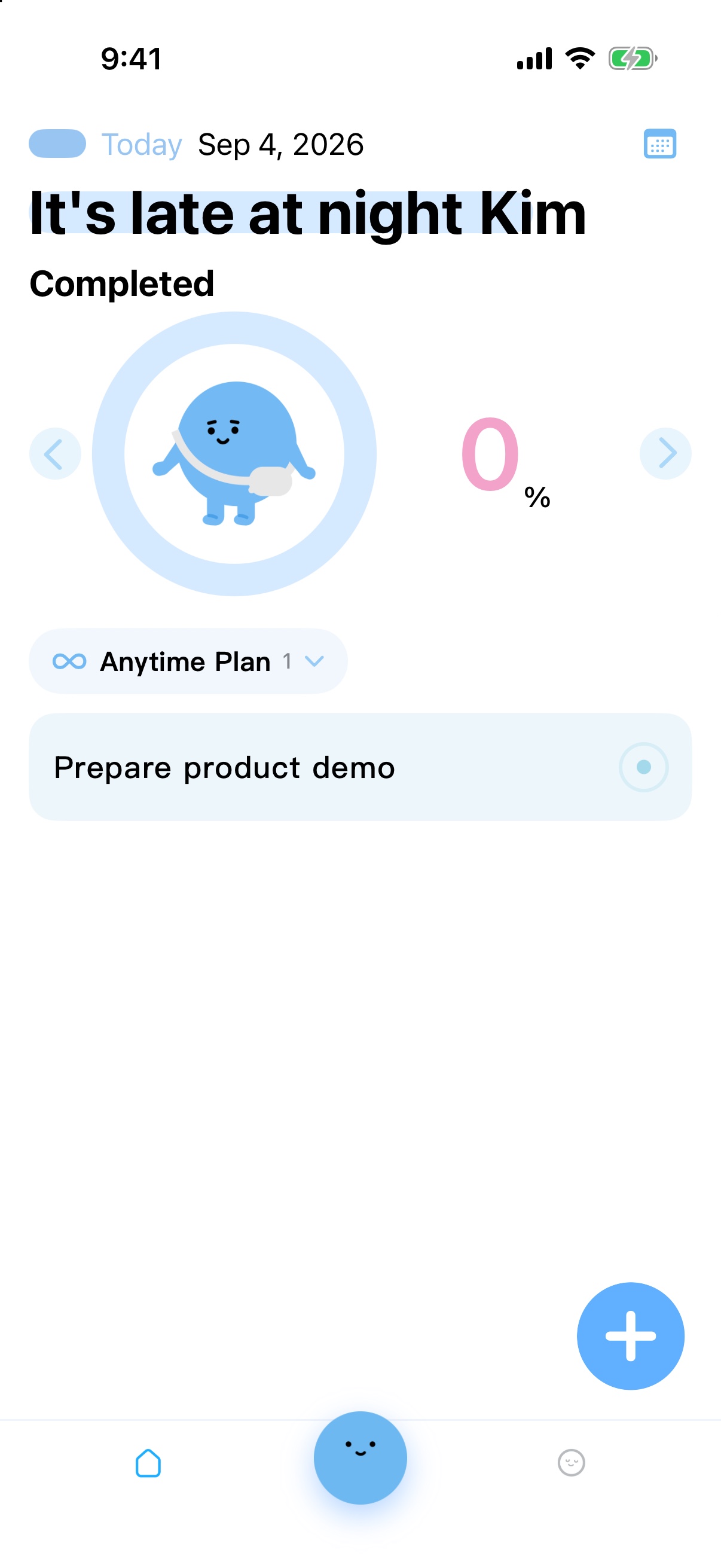
Save the task in DottieNote and choose a suitable duration. If it has no fixed start time, an Anytime Plan gives it somewhere to wait until you are ready.
Choose a duration that fits the day
We use 30 minutes here to make the walkthrough concrete, not because every useful session must last half an hour.
Familiar work may suit a longer uninterrupted block. A task you have been avoiding might be easier to approach with a shorter commitment. Choose a duration you can reasonably begin and finish today, rather than the one that looks most impressive.
If you already use a 25-minute Pomodoro rhythm, you can keep it. Just distinguish between recording a completed task and earning a planet. A completed 25-minute session can still be recorded, but it does not meet the current 30-minute planet condition. There is no reason to record time you did not actually spend working for the sake of a reward.
Complete the first binding carefully
You will need an official Dottie Sticker and a compatible iPhone. Check the NFC setup guide for current device and system requirements. Being able to read an ordinary NFC tag does not mean that tag can be used as a Dottie Sticker.
For the initial setup:
- Create the task in DottieNote, check its details, and save it.
- Open its settings and find the NFC binding option.
- Follow the prompt and hold the top of your iPhone near the sticker.
- Wait for confirmation, then test the sticker once to check that it opens the intended task.
Saving first matters. A task still being edited in the creation screen is not the same as a saved item. Establishing the task before linking the sticker also makes it easier to check exactly what the sticker should open.
If you do not have a sticker yet, start the session directly in the app. You can learn which task and duration suit your routine before deciding where a physical entry point would help.
Pick a useful place, not lots of places
For the presentation, beside the keyboard is a sensible starting point. Open the computer, notice the sticker, and find the task. The location supports an action that already belongs there.
Reading might fit a bedside table or a favorite chair. Stretching might fit the space beside an exercise mat. A leaving-home checklist might fit the entryway. Choose the place where you actually do the activity, rather than only the surface where a sticker looks good.
Begin with one. Add others when you know which combinations of place and task you return to. If the same sticker switches constantly between reading, work, and exercise, you have to remember its latest assignment before each tap. That can make it less helpful.
Test the position before settling on it. Nearby metal, a phone case, or other obstructions can interfere with reading. Try the sticker in your hand and then in its intended location. If only the second test fails, investigate the placement before rebuilding the entire task setup.
Tap, check the task, and get to work
Bring the phone near the bound sticker and follow any iOS prompt. Once DottieNote opens, check the task and duration. If the timer has already started, get on with the work; if the screen still offers a start action, follow that prompt. The exact sequence depends on the phone’s state and the action supported by your setup.
An extra check on the first use helps establish a predictable routine. After that, you should know where the sticker leads and be able to give most of your attention to the task itself.
In the presentation example, work on the opening three slides. If you remember that a later slide needs a chart, make a brief note and leave it for another session. Otherwise, the entire project can quietly move back into the half hour you set aside for one part of it.
You can check progress through the timer view or Lock Screen Live Activity. If you choose Flip-to-Focus, follow the guidance for that mode. Ordinary timing and flip-based controls are not identical: locking the phone, picking it up, and completing a task do not all mean the same thing.
After an interruption, return to the current session
A call, a conversation, or the doorbell can interrupt focused work. That does not require declaring the session a failure or immediately creating a second task with the same name.
Return to the original task and check its state. Is the timer running, paused, or finished? Continue from the current progress if you can. If the work cannot continue today, handle the record according to what actually happened and decide where the next session should begin.
Avoid repeatedly pressing Start, recreating the task, or deleting records while the state is still unclear. Those actions can make the original question—what happened to this session?—harder to answer.
If the state continues to look wrong, note the approximate time, what you did, and the app version. A screenshot can help when you contact Support. A clear sequence of events is more useful than trying many different actions and reconstructing them afterward.
Leave one sentence for your next session
The timer can finish before the whole project does. Compare the result with the small outcome you chose at the beginning.
Perhaps the three-slide outline is ready and now needs images. Perhaps the first two slides are clear but the third still needs a better example. Write the next task as “Find an example for slide three,” rather than leaving yourself “Continue presentation.”
That sentence preserves your place in the work. Tomorrow, you will not need to reopen every file and reconstruct the previous session before knowing what comes next.
If the session qualifies for a planet, you can also check the collection. The current 30-minute focus reward has a daily limit; it is not issued again after every eligible-looking session on the same day. The planet collection guide explains the conditions. Whether or not a new planet appears, the work you did still counts.
Adjust after a few real uses
The first setup does not need to be perfect. After using it a few times, ask three questions: was the task too broad, did the duration fit, and was the sticker easy to reach?
If you still spend several minutes deciding what to do, refine the task. If you regularly have to leave halfway through, reconsider the duration. If you keep searching for the sticker, change its location. Adjusting one thing at a time makes it easier to notice what helps.
Dottie Stickers do not need to organize your entire life. Start with one familiar situation: sit at the desk, tap, and know what to do next. Let the setup grow only after that small routine has earned its place.